
“Can you refactor the— [inaudible] —and keep the existing…”
AirPods stole your mic again?
Stop your Mac from switching microphones.
Pick your mic once. When AirPods — or anything else — silently grabs your Mac's input, Mic Check switches it straight back. Dictation, voice coding, and calls stay on the microphone you chose.
$9.99 one-time 14-day money-back guarantee (direct purchases) macOS 13+ Never records audio
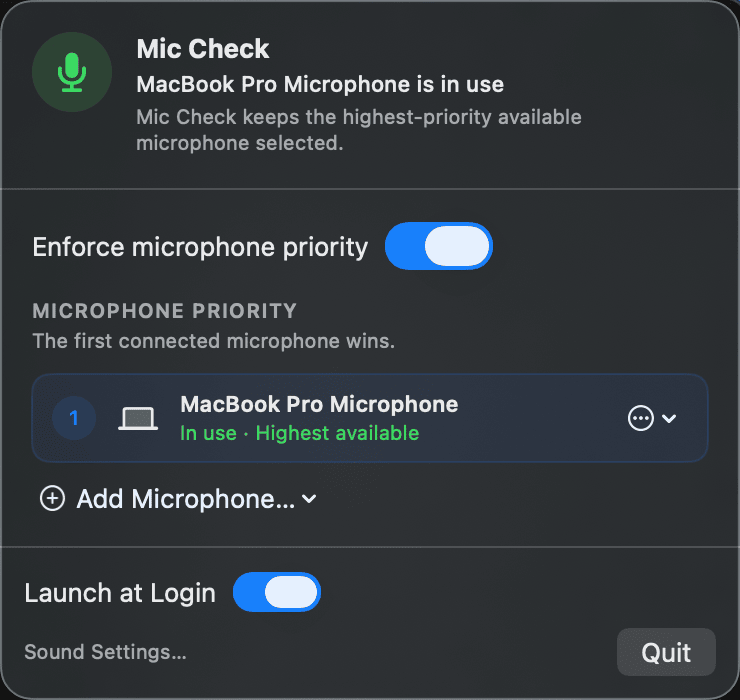
THE ACTUAL APP
REAL SCREENSHOT
01 / THE PROBLEM
Does your Mac keep switching microphones?
Put on AirPods, connect a headset, or plug in an audio device and macOS can silently change the default input. Your dictation app follows along. The next transcript comes from the wrong microphone—and you have to say everything again.
“Can you refactor the settings view and keep the existing behavior?”
02 / HOW IT WORKS
One list. One rule. No mic roulette.
Rank your mics
Add the microphones you actually use, in the order you want them.
The top mic wins
Your highest-ranked connected mic is the input. If it unplugs, the next takes over — and when it returns, it's back in charge.
Nothing else can take over
Devices you leave off the list — like AirPods — can't steal the input. If macOS switches anyway, Mic Check switches it back. Automatically.
Buy Mic Check — $9.99
View on the Mac App Store
Try it on your real setup — full refund within 14 days (direct purchases) if it doesn't stick.
03 / WORKS WITH YOUR GEAR
Works with the mics you already own.
MacBook microphone, USB mics, headsets, audio-interface inputs — if it shows up in your Mac's Sound Settings input list, Mic Check can keep it in charge. Input only: your speakers and headphones are never touched.
04 / PRIVACY
It can't hear you. macOS never even asks.
Mic Check never listens to, records, or uploads audio — it never even asks for microphone permission, because it never opens an audio stream. You'll see that yourself at first launch: no mic prompt. It reads the device list macOS publishes and sets the system default input. That's the entire surface, and everything stays on your Mac.
Read the privacy policy06 / FAQ
Answers before you buy.
Does Mic Check listen to or record audio?
Never. It doesn't open an audio stream, so macOS never even shows it a microphone-permission prompt — there's nothing to record, analyze, or upload. It only sets which device is the system default input.
Is it safe to install?
Yes. Mic Check is a signed, Apple-notarized app — macOS verifies the signature before it will run. Checkout, receipts, and download delivery are handled by Lemon Squeezy, the merchant of record.
Is this a subscription?
No. $9.99 once — no subscription, no account. One license covers the Macs you personally use, includes maintenance updates for version 1, and is yours to keep using.
Can I keep AirPods for listening?
Yes. Mic Check changes input only — AirPods keep playing your audio while your chosen microphone stays the input.
Will every app follow Mic Check?
Apps that use the macOS system default — most of them — follow it instantly. An app pinned to a specific mic in its own settings keeps using that mic until you point it back at System Default (here's how ). Complex aggregate or studio routing, and some docks that report an empty jack as a connected device, are outside what v1 manages.
What if it doesn't work on my setup?
You're covered by a 14-day full money-back guarantee. Buy it, run it against your real mics and apps, and if it doesn't fix the problem, email miccheck@8oclock.co from the address you used at checkout with your order number — you'll get a complete refund. No reason needed, no log files.
07 / THE GUARANTEE
If it doesn't fix your setup, you get your money back.
Run Mic Check for 14 days with your real mics, apps, and dictation workflow. If it doesn't hold your input steady, email us for a full refund — every cent, no reason needed, no log files. Bought on the Mac App Store? Apple handles those refunds instead. And a human answers: support goes straight to the developer.
Email support
Keep talking. Keep the right mic.
Set it once. Stop checking Sound Settings.
Checkout is briefly unavailable — email us and we'll send you a purchase link the moment it's back.
$9.99 once. No subscription, no account. Your download is ready right after checkout — and a 14-day full money-back guarantee (direct purchases) if it doesn't fix your mic.
Signed & notarized Delivered by Lemon Squeezy
US $9.99 plus any applicable tax — your total shows before you pay. Secure checkout by Lemon Squeezy. 14-day money-back guarantee: see Direct Terms & Refunds.